A terminal that stays with the project.
CoolDesk has a real shell built in: one in the sidebar, and as many as you like as tabs next to your pages and files. Type > and a command into the search bar and it runs there, in the right folder.
Mac, Windows and Linux · free, no account
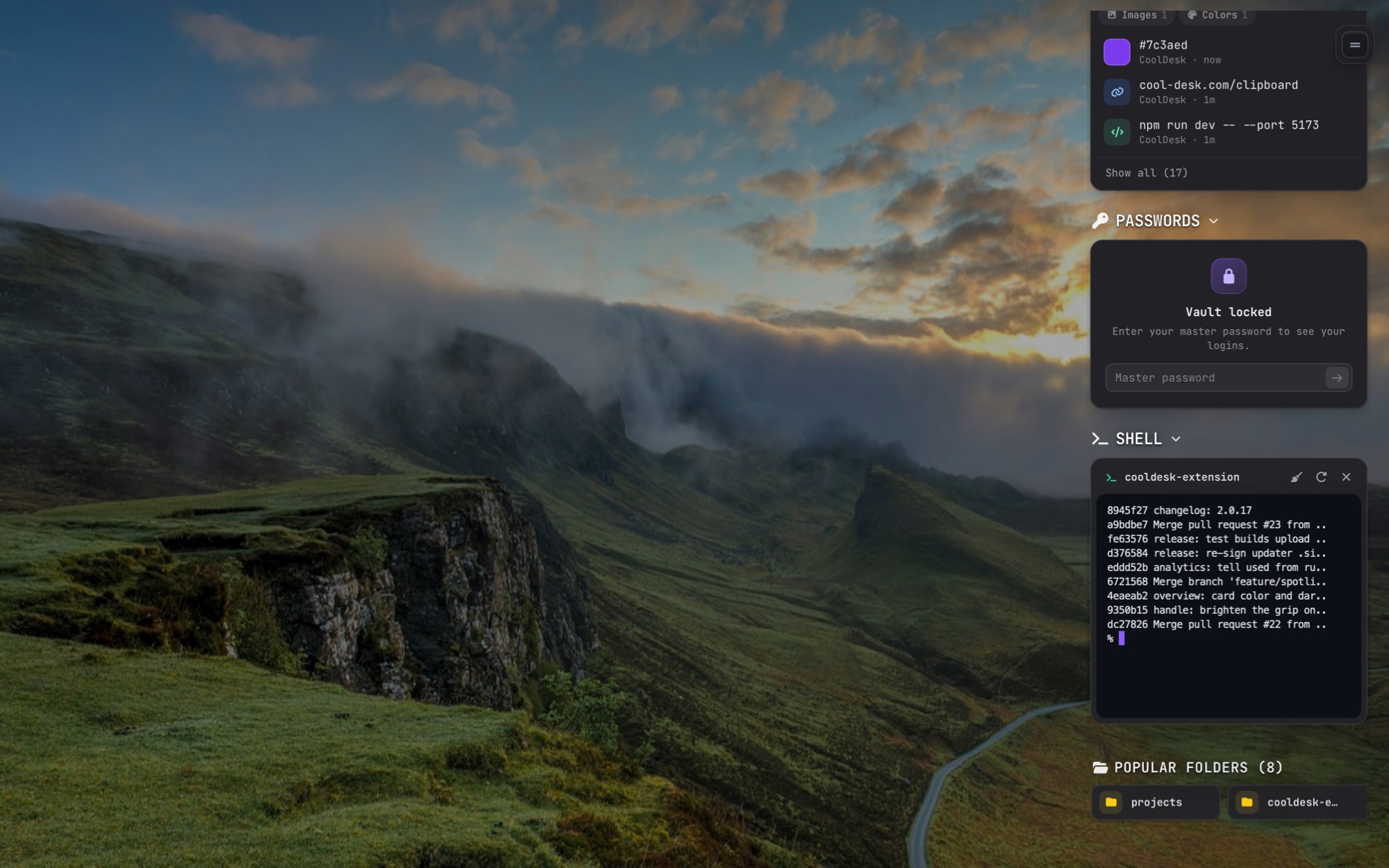
Terminals as tabs
In the browser, a terminal is a tab like any page or file, with Back and Forward across all of them. Open as many as you need, or pull one up as a drawer at the bottom with Ctrl+`.
Colours follow your theme, light or dark. Switching tabs only hides a shell; closing the tab ends it.
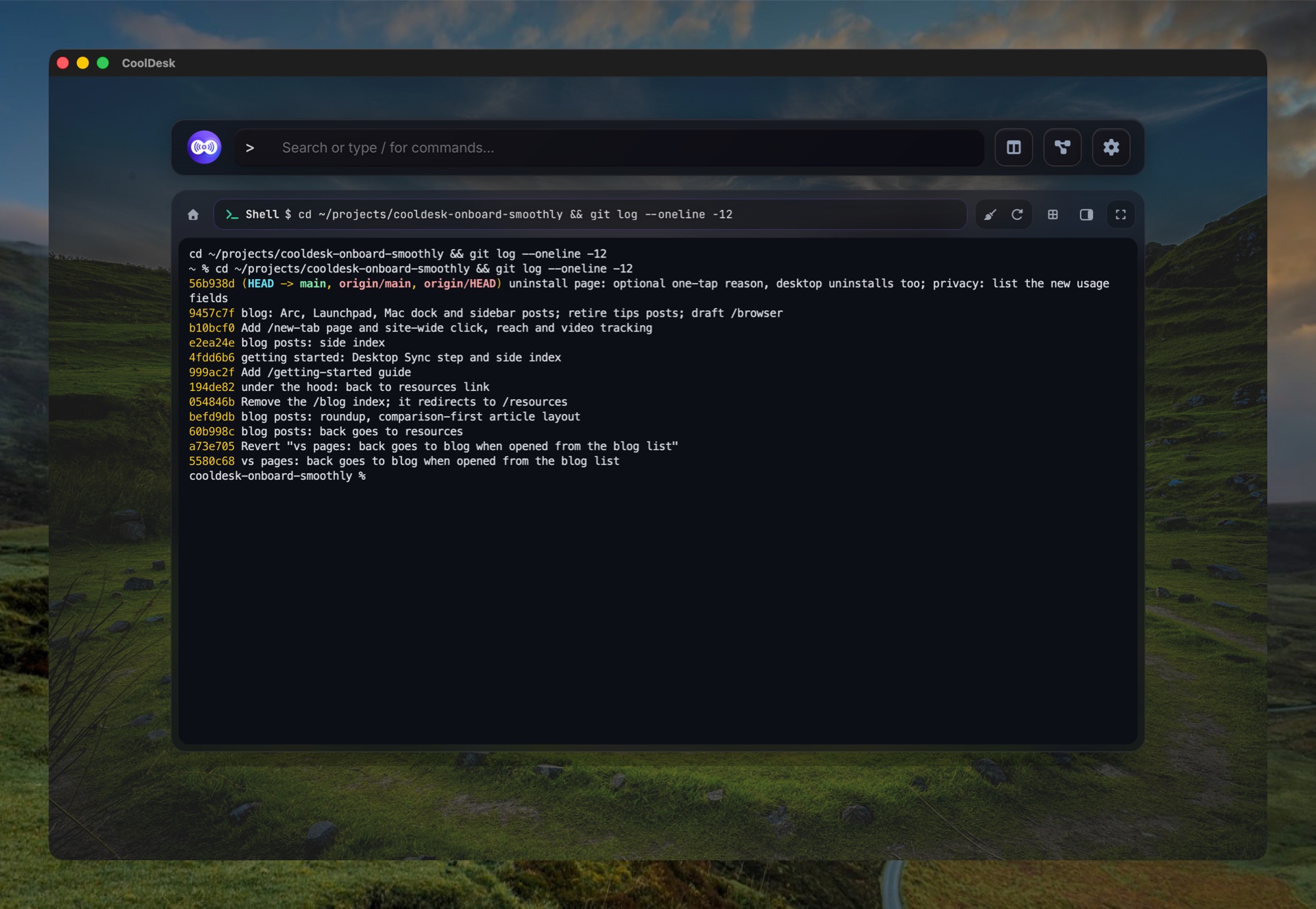
Run a command from the search bar
In Spotlight (Alt+K from anywhere, or the search bar at the top of CoolDesk), type > and a command, like > git status, and press Enter. It’s typed into a real shell, so cd, &&, pipes and aliases all work, and the shell stays open for what comes next.
It starts in the folder of the tab you’re working in, or your home folder if there isn’t one.
For a full terminal right in Spotlight, type /shell. It keeps running when Spotlight closes, so a dev server or a long build is still there when you come back. /todo and /notes sit next to it, for the workspace’s to-dos and notes.
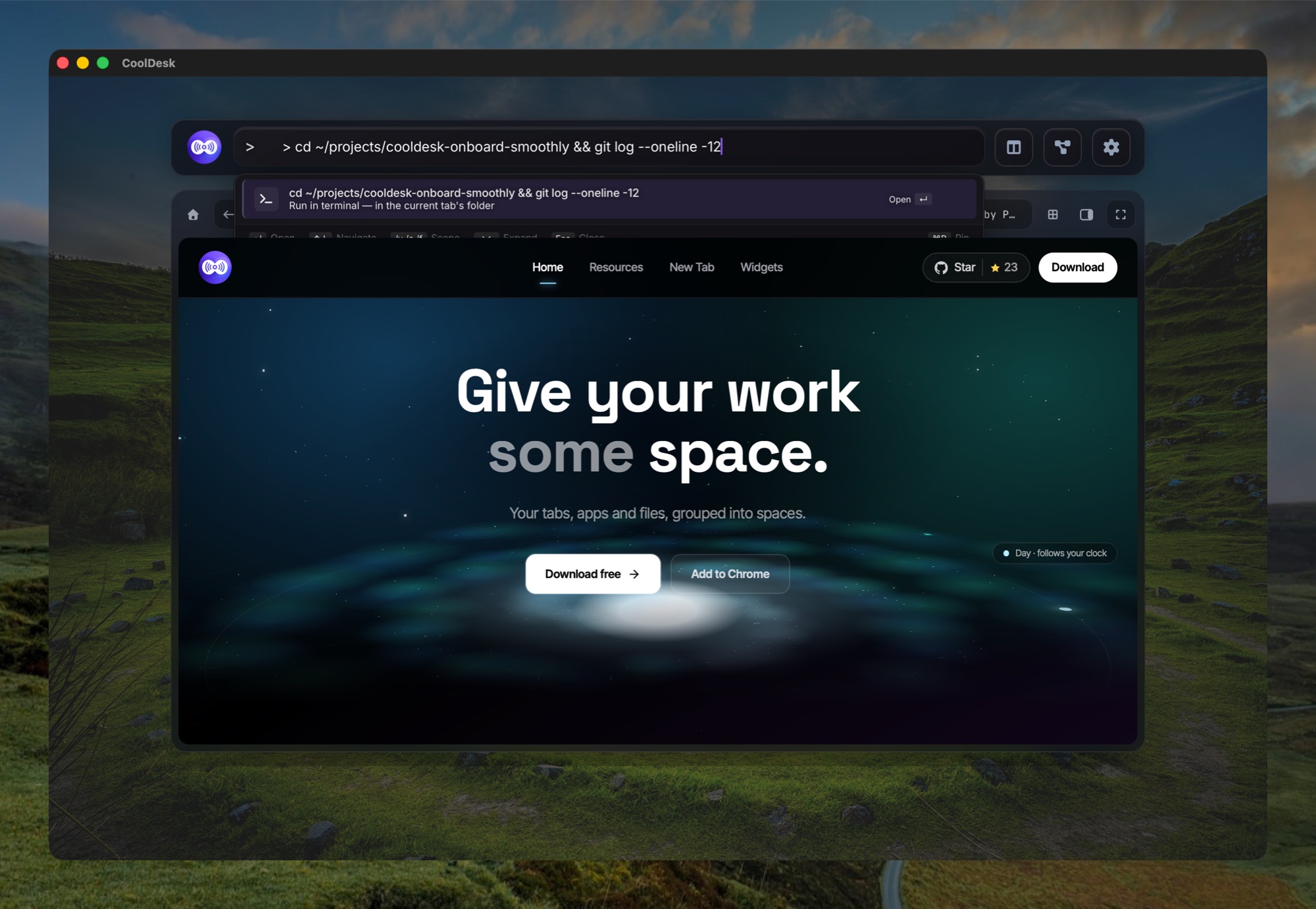
Project commands, where you can see them
Save a workspace’s commands once (start the dev server, build, lint) and run them from the file manager’s project bar or the search bar. Each opens in a terminal titled after the command, already in the project’s folder.
Controls
- Clear
- Wipe the screen. ⌘K on a Mac, as in Terminal.
- Restart
- Start a fresh shell in the same folder. For a project command, it runs the command again.
- cd here
- Jump the shell to the folder you’re looking at in the Files panel.
- Hide
- Tuck the drawer away with Ctrl+`. The shell keeps running.
Questions
Is it a real terminal?
Yes. It runs your own login shell (zsh, bash, PowerShell…) with your aliases, prompt and PATH. Anything that works in Terminal or Windows Terminal works here.
Can a web page run commands in it?
No. Only CoolDesk’s own window can start or type into a shell. Pages open in the built-in browser are refused.
What happens to my shells when I quit?
They end, like any terminal window. Terminal tabs come back after a restart as fresh shells in the same folder.
Can I still use my usual terminal?
Of course. And when CoolDesk has no shell on screen (in the browser extension, say), project commands open in your system’s terminal instead.
Keep a shell one hover away
Free, no account, and everything stays on your device.