One browser for pages, files and your terminal.
A new kind of browser where a web page, a folder, a file, a note and a terminal are all just tabs. Open one at a time, or flip to multi view and see them side by side. Block ads, highlight what matters and clip it into your notes. It’s built into the free desktop app.
Mac, Windows and Linux · no account
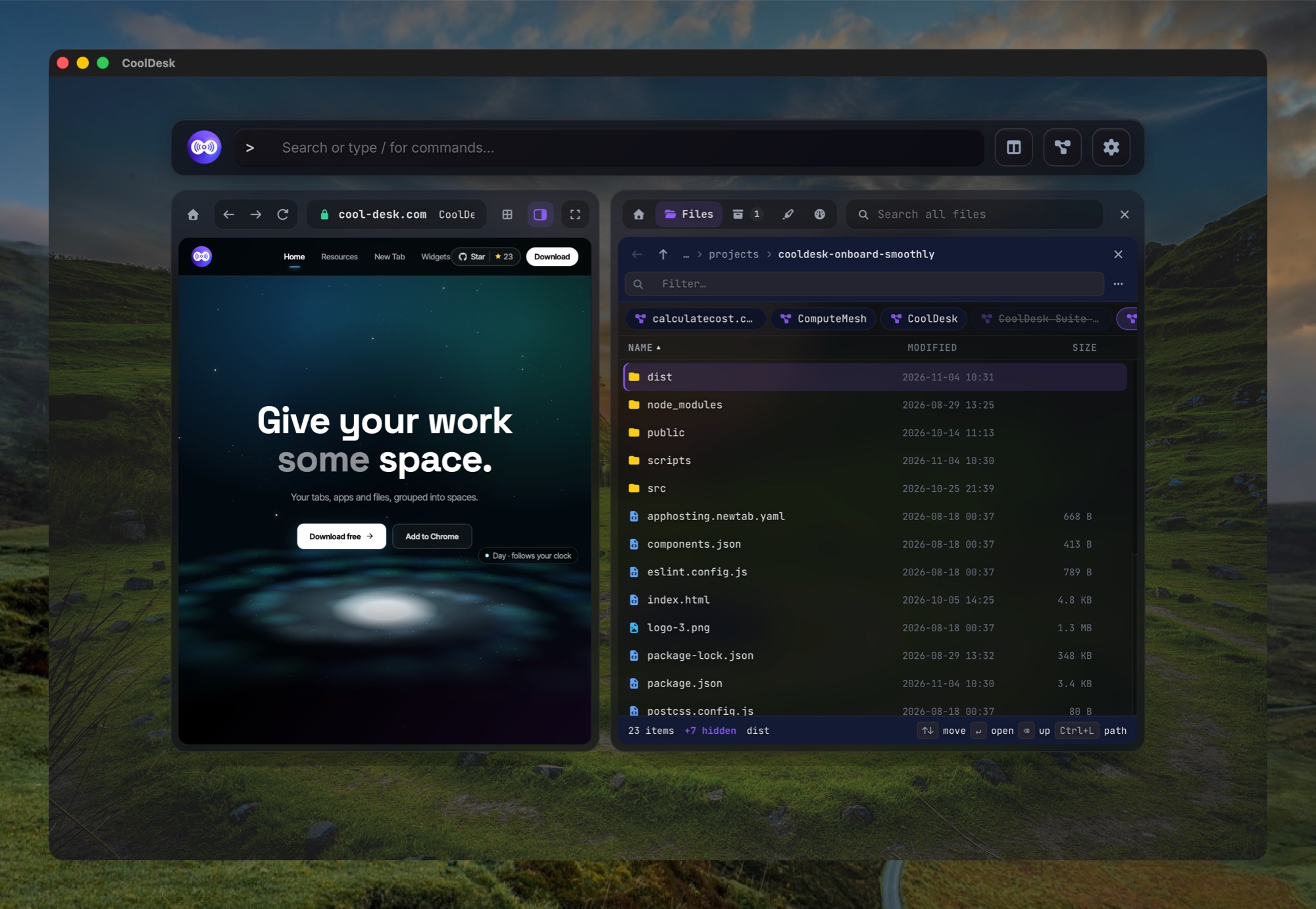
The page on the left, your project on the right
The main view shows only what you’re looking at: a page, a file, a folder, a note or a terminal. The side panel has two tabs:
- Home
- one page for the workspace: search with suggestions, your open tabs, the workspace’s pinned links (switch workspace right in its header), its folders, notes on the page you’re reading, clipboard history and the Shelf
- Page
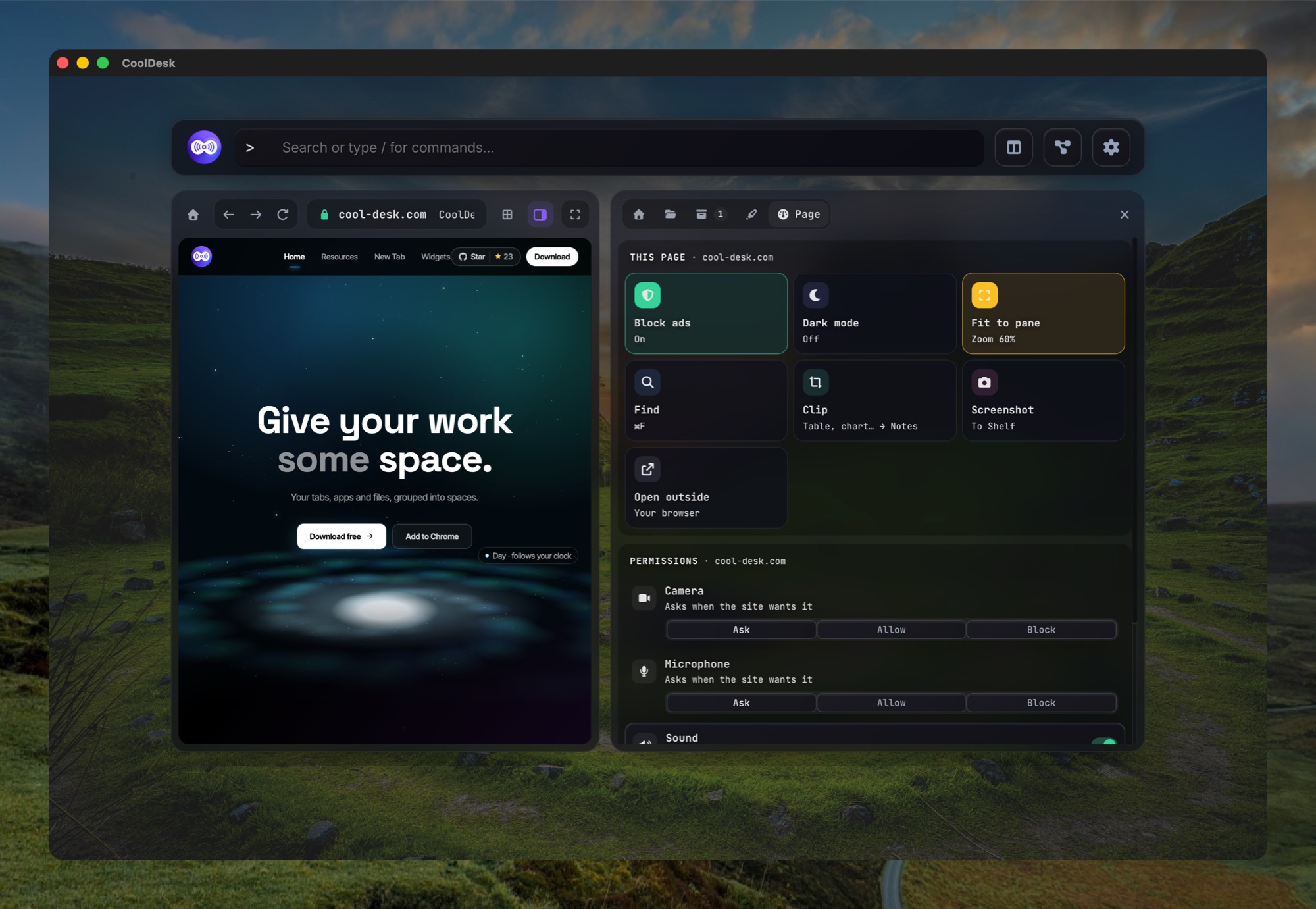
- tools and site settings for the page in front of you
Pages, files, folders, notes and terminals share one row of tabs, with Back and Forward across all of them. The usual shortcuts work: ⌘T, ⌘L, ⌘R, ⌘F and ⌘[ / ⌘].
A new tab starts with search, plus one click to open a shell, a note or your files. New note opens a scratch note that stays with its tab until you save it to a workspace.
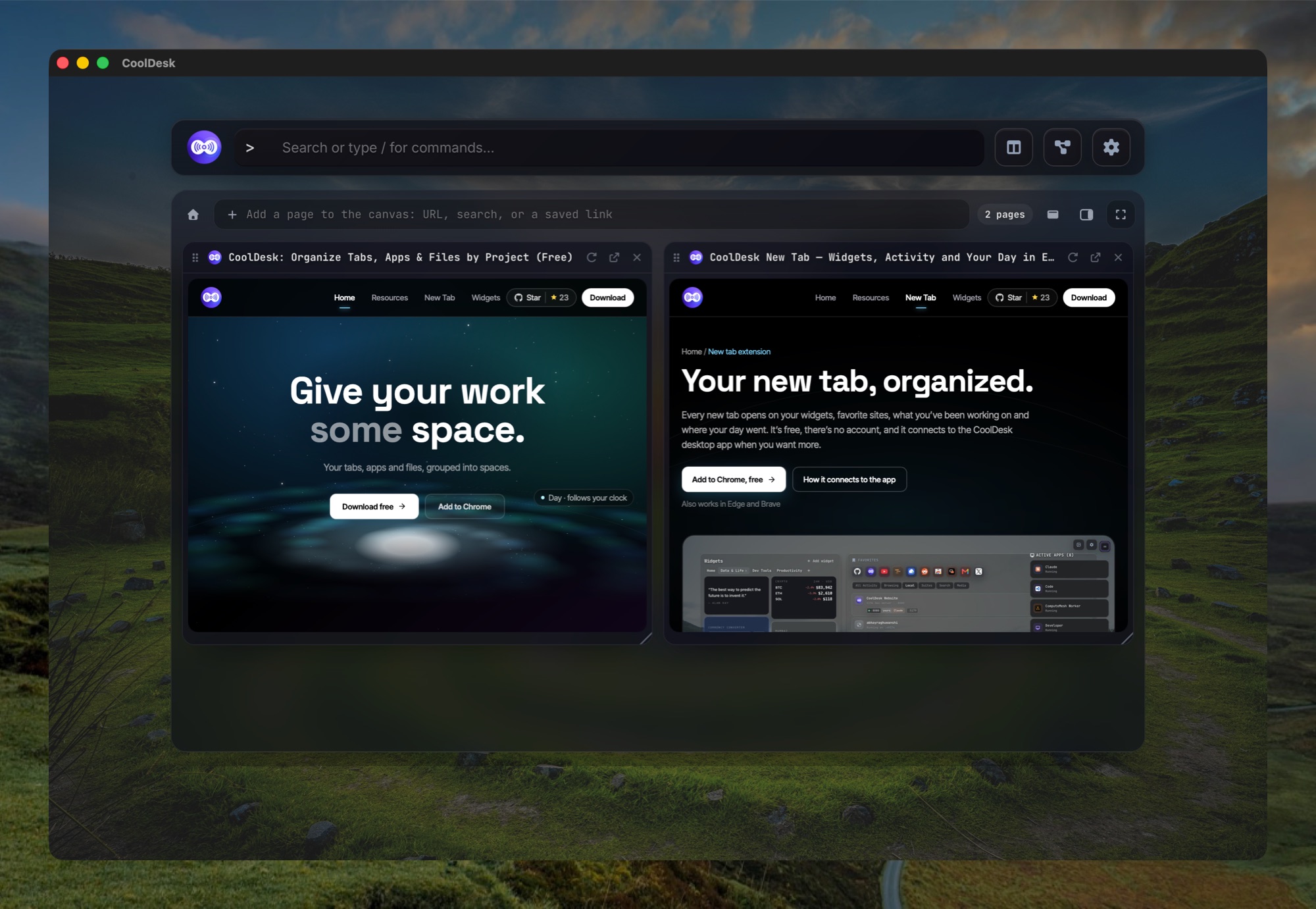
Multi view: tabs side by side
Flip the Single | Multi switch in the toolbar and your open tabs, whether pages, terminals, files or folders, sit side by side in a grid that fits the window. Drag the dividers to resize them: the docs next to the app you’re building, a dashboard next to the ticket, a terminal next to your notes.
Focus mode, its own button next to the switch (⌘⇧F), hides everything but your tabs.
How does it compare with split view in Chrome, Edge, Firefox and the rest? See how to split screen tabs in any browser.
Ads and trackers blocked
Ad and tracker blocking is built in, using the EasyList and EasyPrivacy lists, with nothing to install.Mac
Streaming sites work too, so a video can play beside your work. Camera and microphone are asked for per site, and you can set each site to Ask, Allow or Block, or mute it.Mac
Page tools
- Highlights and notes on any page, still there next time you open it.
- Clip a table, chart or block of a page into the workspace’s notes, with a link back to where it came from.
- Copy as Markdown, find in page, screenshots, and dark mode for any site.
Page tools are on Mac for now.Mac
A terminal in the same window
Open a terminal as a tab, or pull up a drawer at the bottom with Ctrl+`. It’s your real login shell, in your theme’s colours, and links in its output open as tabs. Full-screen programs like Claude Code, vim and htop draw just as they do in Terminal.
More on the built-in shell.
Files and archives, without another app
Folders open as tabs with the full file manager, and files open in the main view, next to your pages:
- Markdown & HTML
- source or preview, side by side with your notes
- JSON
- a collapsible tree
- CSV / TSV
- a table
- Audio
- a player
- Archives
- zip, tar, 7z and rar: see inside, preview a file, extract here; compress any folder to .zip
Downloads and dropped files land on the Shelf in Home, so they don’t disappear into a Downloads folder. Copied text and images are in the clipboard history beside it.
It stays light
Like Safari and Chrome’s memory savers, background tabs go to sleep when they’re idle, spinning the CPU or using too much memory, and wake up on the page you left. Tabs playing sound or using your camera are never put to sleep.
If a page crashes it reloads once on its own. If a page you’re looking at gets stuck using a lot of CPU, you can stop it.
What it isn’t
- Not a Chrome replacement. It’s for the pages that belong to a project. Keep your main browser for everything else.
- No extensions. It runs on your computer’s own web engine, which doesn’t support them.
- Separate sign-ins. It has its own cookies, so you sign in to sites once inside CoolDesk.
Looking for a new main browser? See our honest list of Arc alternatives.
Questions
Does it replace Chrome?
No, and it isn’t trying to. It’s for the pages that belong to a project: docs, dashboards, a localhost app, a video while you work. Your main browser stays where it is, and its tabs still show up in the side panel.
Do my Chrome extensions work in it?
No. It uses your computer’s own web engine (WebKit on Mac, WebView2 on Windows), which doesn’t run browser extensions. Ad and tracker blocking is built in on Mac instead.
Which platforms is it on?
The browser, multi view, terminal and file viewers work on Mac, Windows and Linux. Ad blocking, the page tools and site permissions are Mac-only for now.
Am I signed in to my usual sites?
Not at first. It keeps its own cookies, separate from Chrome or Safari, so you sign in once inside CoolDesk.
Is it free? Where does my data go?
It’s part of the free desktop app, with no account. Your highlights, notes and history stay on your computer. The privacy policy has the details.
Keep a project’s pages with the project
Free, no account, and everything stays on your device.