Your new tab, organized.
Every new tab opens on your widgets, favorite sites, what you’ve been working on and where your day went. It’s free, there’s no account, and it connects to the CoolDesk desktop app when you want more.
Also works in Edge and Brave
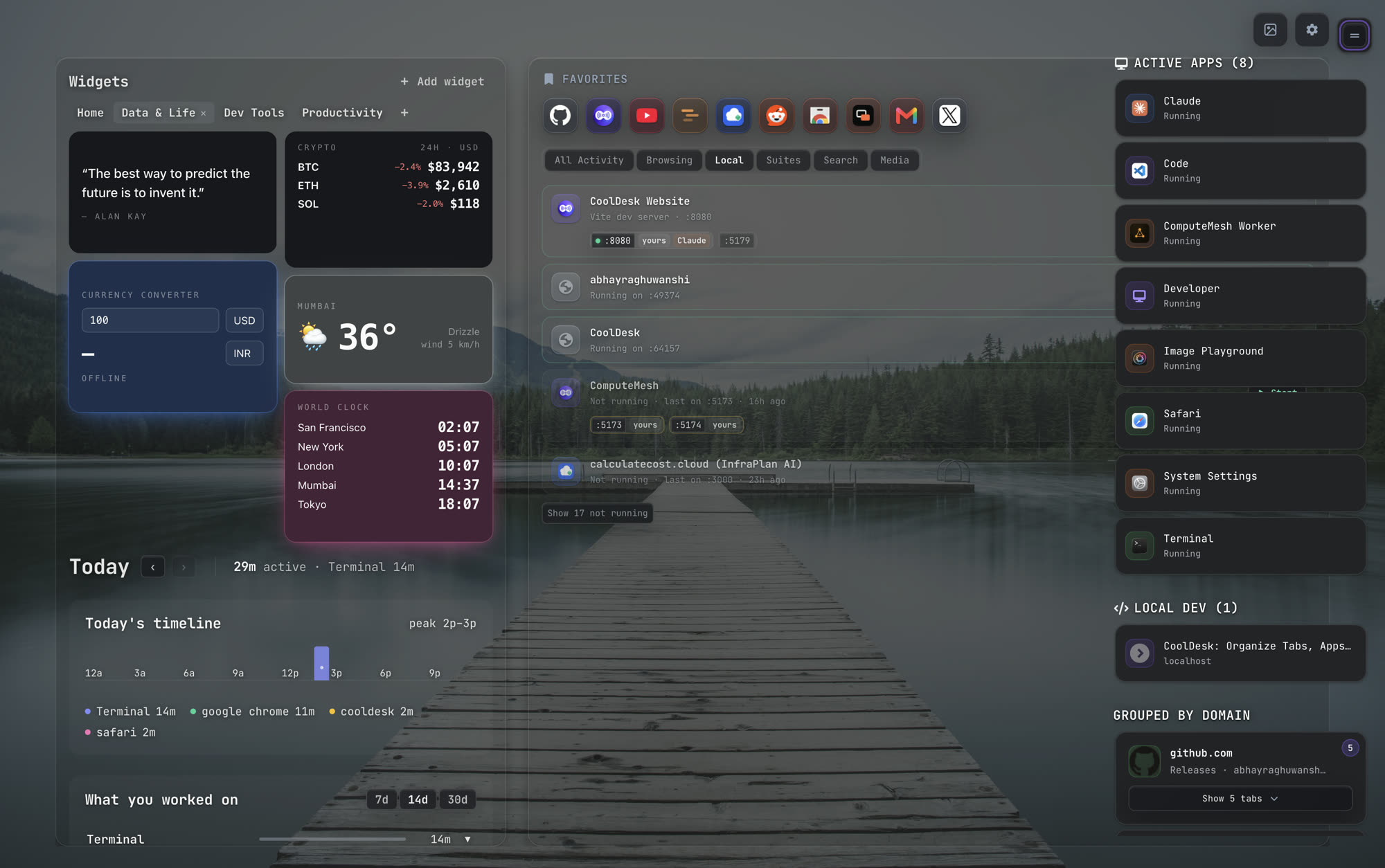
Widgets, sorted into tabs
Keep a clock, weather, currency converter, crypto prices, quotes and more on your new tab. Sort them into tabs like Home, Dev Tools and Productivity, and switch between them in one click.
Browse them all in the widget store, or add your own.
Favorites and an activity feed
Your favorite sites sit in a row at the top. Below them, the activity feed shows what you’ve been doing, split into tabs:
- All
- everything, newest first
- Browsing
- the sites you’ve had open
- Local
- dev servers on localhost, with their ports
- Suites
- a site’s services grouped together, like every Google app under google.com
- Search
- what you searched for
- Media
- videos and music
Where your day went
Today’s timeline shows when you were active and where the time went, hour by hour. What you worked on adds it up over the last 7, 14 or 30 days.
On its own, the extension counts time in your browser. With the desktop app connected, your apps count too.
Tabs, dev servers and running apps
A column on the side keeps the rest in view:
- Local Dev: your localhost and LAN dev servers, pulled out of the tab pile.
- Grouped by domain: all the tabs from one site in one card, opened or closed together.
- Active Apps: what’s running on your computer, when the desktop app is connected.
49 layouts
Pick from 49 layouts in the Customize panel, in five groups: Vibes (Search, Zen, Deep work, Fun, Morning, Dev), Start pages (Greeting, Shortcuts, Minimal, Launchpad and more), Just for fun (Poster, Orbit, Newspaper, Terminal, Bento…), Designs (Word Clock, Flip Clock, Synthwave, Retro OS, Blueprint, Boarding Pass…) and the card boards below. Search them or hit shuffle.
The card boards arrange the page the way you like it. Tap one to see it:
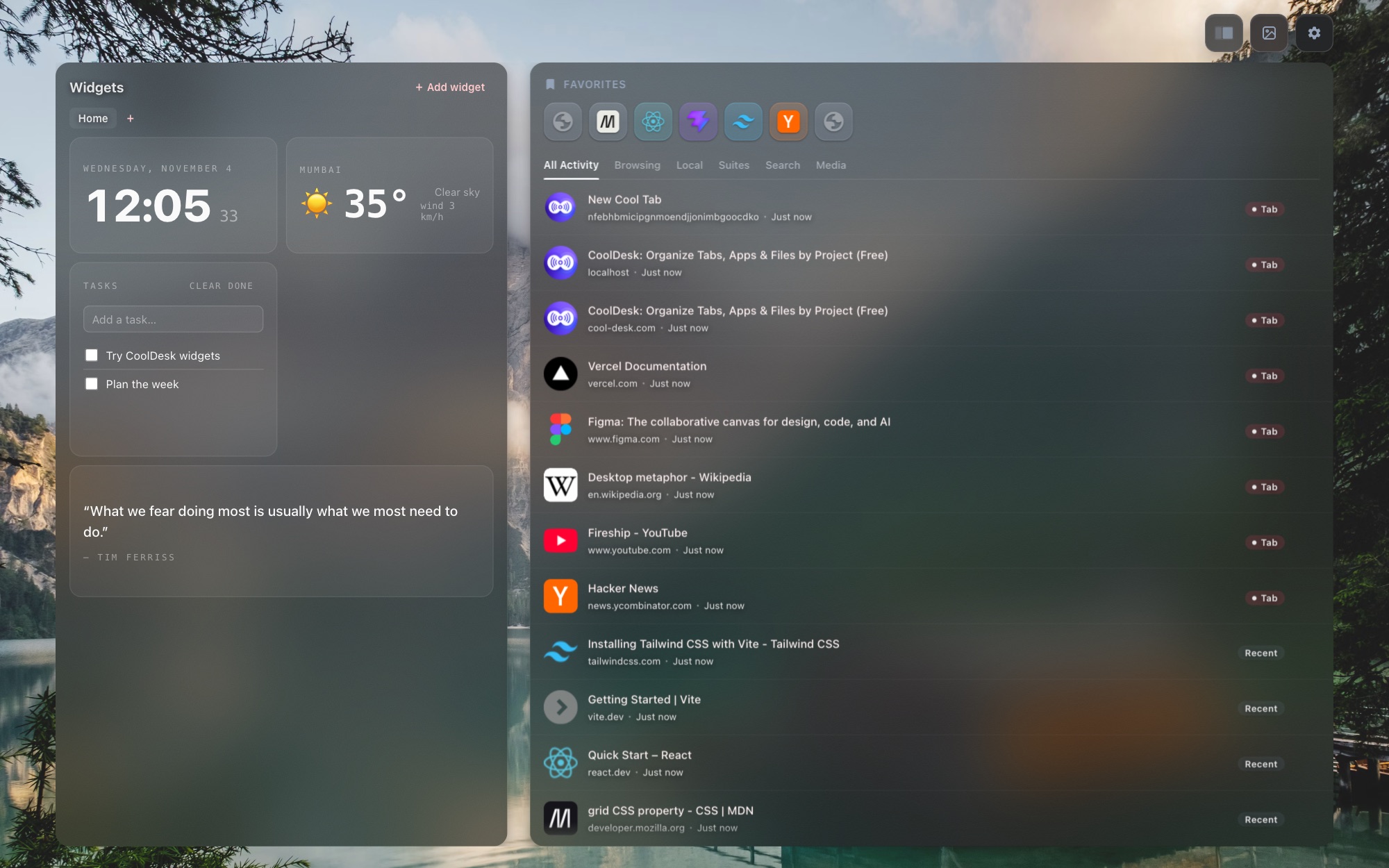
Classic: Widgets left, feed right.
On Custom, every piece of the page is its own card: each widget, Favorites, the summary, the feed or a single feed tab. Drag cards anywhere, resize them, and add or remove them from a list.
Hide the widgets, the summary or the feed, or turn them all off and keep just the background.

Themes and wallpapers
Give it a gradient theme or a photo. Tap one to try it:
16 gradient themes
Or a wallpaper
- Gradient themes: 16 of them, each paired with a font. Change the font and text size too if you like.
- Wallpapers: dozens built in, any image link of your own, or search Unsplash with your own key.
- Make it yours: set how strongly the wallpaper shows through, or let it rotate on its own.
Connect it to the desktop app
The extension works by itself. Install the free desktop app as well and they connect on your computer:
Shares your open tabs
The desktop app sees what’s open in Chrome, Edge or Brave, so Spotlight and your spaces can find it.
Jump or close from the app
Pick a tab in CoolDesk and it switches to it in the right browser window, instead of opening a copy.
Keeps both in sync
Spaces, notes and pins you change in one show up in the other. All on your computer, never a server.
Turn on Desktop Sync
Get the desktop app and keep it running. Desktop Sync is on by default; here’s how to check:
- Open a new tab and click the gear icon (Settings).
- In General, scroll to Sync.
- Switch on Desktop Sync.
- Check Status shows a green dot and “App connected”. Press Sync Now to sync straight away.
- General
- Appearance
- Local AI
Sync
Status says “App not found — is it running?” Start the desktop app, then press Retry. Sync runs on your own computer (localhost, port 4545); nothing goes to a server.
Questions
Does it work without the desktop app?
Yes. Widgets, favorites, the activity feed, your timeline, layouts and wallpapers all work in the browser on their own. The desktop app adds running apps, app time in your timeline, and Spotlight (Alt+K) across your whole computer.
Which browsers does it work in?
Chrome, Edge, Brave and other Chromium browsers that install from the Chrome Web Store.
Is it free? Do I need an account?
It’s free and open source, and there’s nothing to sign in to.
Where does my browsing data go?
Nowhere. It stays in your browser. If you install the desktop app, the extension syncs with it on your own computer (localhost), never through a server. The privacy policy has the details.
Can I add my own widgets?
Yes. Pick from the widget store, or add your own custom widget.
Make your next new tab useful
Free, no account, and everything stays on your device.